The Outlook Calendar integration allows Rocket.Chat users to connect their Microsoft Outlook calendar and access upcoming meetings directly from the Rocket.Chat desktop application. Users can view their scheduled events, open Outlook, and join meetings directly from Rocket.Chat.
When enabled, the integration can also automatically set a user’s status to Busy during scheduled Outlook meetings and restore the previous status after the meeting ends.
This integration is designed primarily for environments using Microsoft Exchange / Outlook Web Access (OWA) and relies on Exchange Web Services (EWS) to retrieve calendar events.
This integration does not support native Microsoft 365 / Office 365 cloud accounts using Microsoft Graph APIs, and it does not synchronize presence with Microsoft Teams.
Configure Outlook calendar integration
To ensure administrators can access and configure the Outlook calendar integration settings, go to Manage → Workspace → Permissions. In the Permissions tab, search for Outlook and verify that the required permissions are enabled for the admin role.
Workspace administrators can enable and configure the Outlook Calendar integration from the administration panel. To enable it:
Go to Manage → Workspace → Settings → Outlook Calendar
Configure the following settings.
Enabled: Toggle this setting to enable or disable the Outlook Calendar integration for the workspace. When enabled, users can connect their Outlook calendars from Rocket.Chat and the Outlook Calendar option appears in the room kebab menu. When disabled, the feature is hidden from the interface entirely, users will not see the Outlook Calendar option in any room.
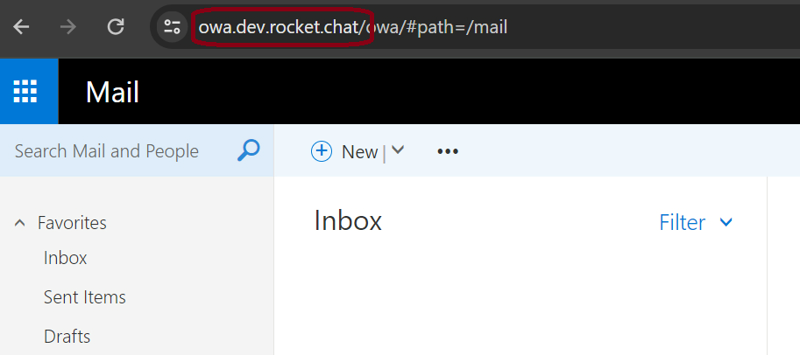
Exchange URL: The Exchange URL specifies the host used to access Exchange Web Services (EWS). Example:
https://owa.xyz.rocket.cat/.Rocket.Chat uses this endpoint to retrieve calendar events associated with a user's Outlook account.
You can find this URL from your browser’s address bar when accessing your Outlook Web App (OWA).
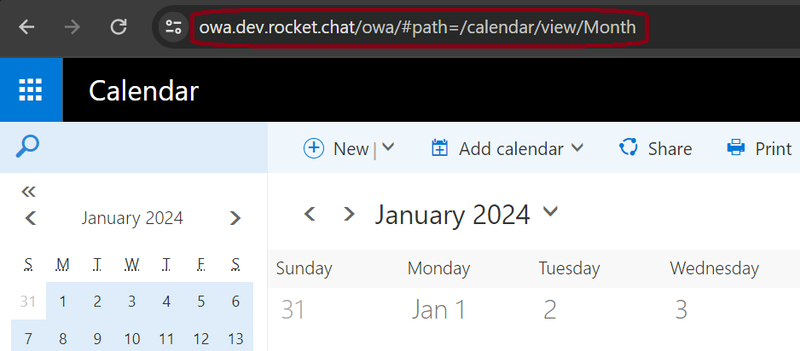
Outlook URL: The Outlook URL defines the web address used to open the Outlook calendar interface. Example:
https://owa.xyz.rocket.cat/owa/#path=/calendar/view/MonthWhen users select Open Outlook from the calendar sidebar, Rocket.Chat redirects them to this URL.
To obtain this URL, open your Outlook calendar in a browser and copy the address from the browser’s address bar.
Meeting URL Regular Expression: This field contains a regular expression used to detect meeting URLs within calendar event descriptions.
When a meeting link (for example Zoom, Teams, or Webex) is detected in an event description, Rocket.Chat extracts the link and displays a Join Meeting option within the calendar sidebar. In most cases, the default value should not be modified.
Outlook Calendar Status Sync: When enabled, Rocket.Chat automatically sets a user's status to Busy during scheduled Outlook meetings. Outlook calendar-based status synchronization is available only on the premium plans.
Behavior:
Status changes to Busy at the scheduled meeting start time.
Status returns to the previous state when the meeting ends.
The status change is based on calendar event times, not on actual meeting participation.
Limitations:
Only the Busy status is supported.
Real-time presence detection is not supported.
The integration does not detect if a user joins or leaves a meeting early or late.
Domain to Outlook URL Mapping: This optional setting allows administrators to define different Outlook URLs for different domains.
This is useful in environments where multiple Exchange servers are used across different domains. Example configuration:
{
  "abc.de": {
      // All three parameters are optional. If "Enabled" is selected previously using the toggle button, you can skip it here.
      "Enabled": true, // Enable or disable this server
      "Exchange_Url": "https://exchange.abc.de", // Enter the Exchange server URL you need to access the server.
      "Outlook_Url": "https://exchange.abc.de/#path=/calendar/view/Month", // Enter the Outlook application URL in this format.
  },
  "xyz.de": {
      "Enabled": true,
      "Exchange_Url": "https://exchange.xyz.de",
      "Outlook_Url": "https://exchange.xyz.de/#path=/calendar/view/Month",
   },
  "demo.com": {
      "Enabled": true,
      "Exchange_Url": "https://exchange.demo.com",
      "Outlook_Url": "https://exchange.demo.com/#path=/calendar/view/Month",
   }
}
Click Save Changes.
Connecting an Outlook calendar
Prerequisite: A workspace administrator must enable the Outlook Calendar integration before the Outlook Calendar option appears in the room kebab menu.
After the integration is configured by an administrator, users can connect their Outlook calendar. To do it:
Open any room in Rocket.Chat.
Click the kebab menu (⋮) menu in the room header.
Select Outlook Calendar.
Click Login to authenticate with your Outlook account.
Once connected, users can synchronize their calendar events.
.png)
Sync Outlook calendar events
After authentication, users can sync their calendar to view upcoming meetings. To do it:
Open the Outlook Calendar sidebar.
Click Sync to retrieve your latest events.
Rocket.Chat displays the events scheduled for the current day.
From the sidebar, users can:
View upcoming meetings
Join meetings using detected meeting links
Open Outlook in the browser
Refresh the event list
Managing calendar settings
In the Outlook Calendar sidebar, click Calendar settings to adjust your preferences.
You can configure the following options:
Event notifications: Enable or disable notifications for your upcoming Outlook meetings. When enabled, Rocket.Chat sends a direct message reminder shortly before a scheduled meeting begins, helping you prepare or join the meeting on time.
Outlook authentication: To disconnect your Outlook account from Rocket.Chat and remove your stored credentials, click Disable. You will need to log in again to reconnect your calendar.
Platform support
The Outlook Calendar sidebar is currently available in the Rocket.Chat desktop application.
Platform | Support |
|---|---|
Desktop | Supported |
Web | Sidebar not available |
Mobile | Sidebar not available |
However, meeting reminder messages may still appear on mobile devices, since they are delivered as regular chat messages.
Limitations
The Outlook Calendar integration has several limitations:
It does not support Microsoft Graph APIs.
It does not synchronize Microsoft Teams presence.
It does not support real-time meeting presence detection.
Busy status changes are based solely on calendar event times.
Working hours or advanced presence rules are not considered.
The integration does not automatically set users to Busy during Rocket.Chat calls or meetings.
This integration is intended primarily for Microsoft Exchange / OWA environments.
Troubleshooting
If the calendar sidebar fails to load or events do not appear:
Reload the Rocket.Chat desktop application.
Ensure the Exchange URL and Outlook URL are correctly configured.
Verify that your Outlook account has access to the configured Exchange server.
Viewing server information
If you need to verify which Exchange server URL your Rocket.Chat desktop application is using for the Outlook Calendar integration, you can view it from the Server Info panel.
Enable Developer Mode in the Rocket.Chat desktop application.
macOS: In the system menu bar at the top of the screen, click Help → Developer Mode.
Windows/Linux: In the application menu at the top of the Rocket.Chat window, click Help → Developer Mode.
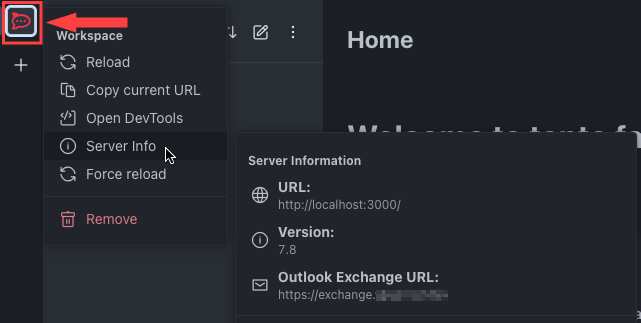
In the Rocket.Chat desktop app, locate the workspace icon in the left sidebar.
Right-click the workspace icon and select Server Info.
In the Server Information panel, locate the Outlook Exchange URL field. This shows the Exchange server used by the Outlook Calendar integration.
The following screenshot shows an example: