
.svg)
The Intelligent Search app is being deprecated and replaced by AI Search. AI Search provides the same capabilities directly in the global search bar, so you no longer need to interact with a separate bot.
Rocket.Chat’s Intelligent Search app allows you to find the right information across your workspace, so you can quickly understand the situation and the context across different rooms and threads. This helps you avoid the risks of scattered information, turning dispersed collaboration into actionable data.
Key features
The Intelligent Search app adds a DM-based search assistant to Rocket.Chat. Users message the bot in a DM, then the app queries your vector pipeline and returns compact previews with links to the original messages.
The app is intent-based (known as semantic search), meaning it focuses on the meaning of search queries rather than the literal words used in the search. This allows you to search the way you think.
Based on the configuration, the app can have consolidated and cross-room views of related discussions.
The app is access-aware by default, reflecting each user’s clearance and permissions. So each user gets results based on their assigned roles and permissions within the workspace.
How the app works
The Intelligent Search app is built natively on Rocket.Chat’s Apps-Engine framework. The following diagram shows the high-level architecture of the app:
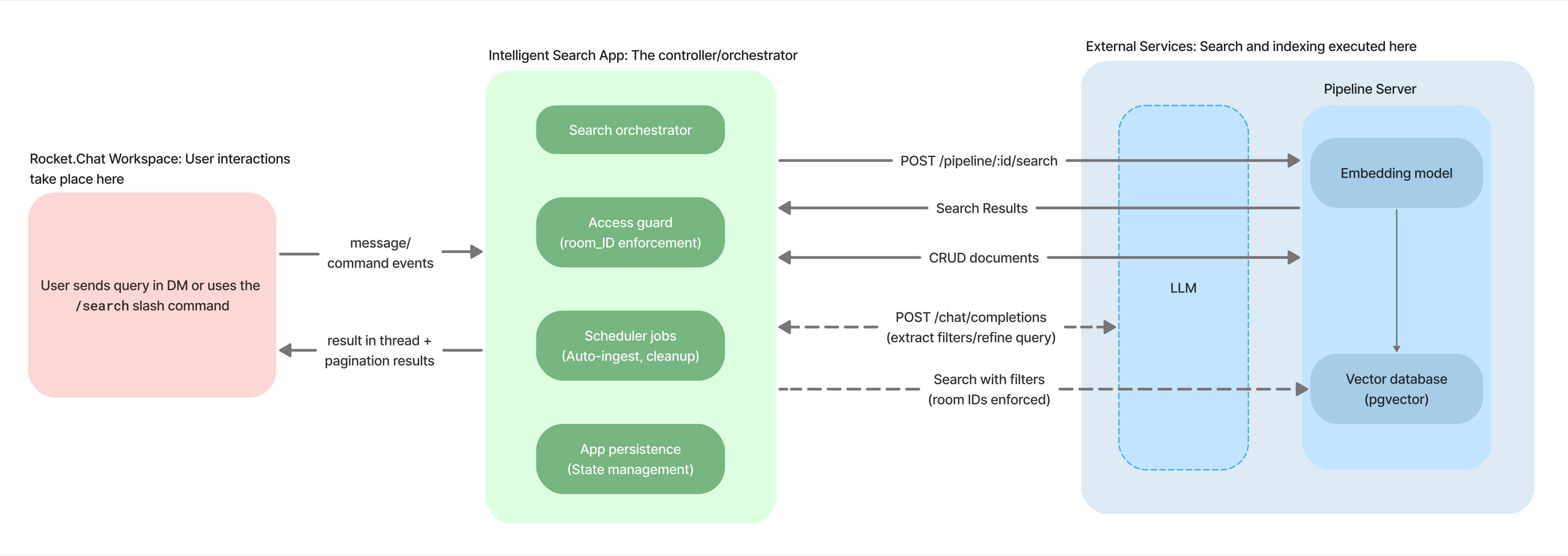
The overview is as follows:
Users send a query in the DM with the app bot. Rocket.Chat sends the request to the app and returns readable results in a thread.
The Intelligent Search app is the coordinator and performs the following functions:
Prepares search calls from the user queries and returns results.
Enforces room ID access so users get results only from the rooms they are allowed to access.
Do scheduled tasks such as automatically indexing new messages and removing room data when the search is disabled for that room.
Stores app state like enabled rooms, job progress, and checkpoints. This helps the app resume safely after a restart.
The external services include the following:
Pipeline server: The main backend that runs semantic search and document indexing.
Embedding model: Converts text into meaning-based vectors. This helps in retrieving meaningful results even when the search query uses different terms.
Vector database (pgvector): Stores searchable vectors and metadata (such as room, message ID, timestamp, and author).
LLM (optional): Can be used to improve advanced filter extraction/refinement. For example, a user queries Messages from Jane last week about deploy. The query is split into the semantic part deploy and the metadata filters author = Sarah, time = last week.
Prerequisites
Rocket.Chat AI pipeline: Refer to the official documentaiton to set up the Rocket.Chat AI pipeline.
An additional LLM(optional).
Install and configure the app
To install the app, follow these steps:
Click the Marketplace icon
.png) from the main menu at the top of the workspace.
from the main menu at the top of the workspace.Click Explore and the Marketplace page opens.
Search for the Intelligent Search app from the list of apps and click it.
On the Intelligent Search app page, click Install.
Agree to the required permissions. Then the app is successfully installed in your workspace.
To configure the installed app according to your needs, follow these steps:
On the Intelligent Search app page, go to the Settings tab.
Modify the values of the following settings as per your needs:
Field
Description
Pipeline Connection
Pipeline API Base URL*
Enter the API URL of your Rocket.Chat AI pipeline server.
Results depend on the embedding model configured in your pipeline, and multilingual support and recall vary by model.
Pipeline ID*
Enter the pipeline ID from Rocket.Chat AI.
To get the ID,
Go to your Rocket.Chat AI pipeline server dashboard.
Navigate to pipelines and select the pipeline that has the indexed data you intend to use
Copy the ID of the pipeline
Pipeline API Key*
Enter the API key generated by the pipeline.
Pipeline API Secret*
Enter the API secret generated by the pipeline.
Pipeline Embedding Model ID
Enter the ID of the embedding model that is configured for the pipeline. You can get this value using the GET
/embedding-modelspipeline endpoint.This field is optional if you already have a pipeline and have entered a value for the Pipeline ID setting.
Pipeline Text Splitter ID
Enter the ID of the text splitter to be used when indexing message documents. You can get this value using the GET
/providers/text-splitterspipeline endpoint.This field is required whether you have an existing pipeline (when the Pipeline ID setting is defined) or are creating a new one (using the
/search setupcommand).RAI Mongo Connector
RAI Mongo Connector Base API URL*
Enter the Base URL for the Rocket.Chat Mongo Connector API.
RAI Mongo Connector API Key*
Enter the Rocket.Chat Mongo Connector API key. It’s used by Intelligent Search to read status and manage room selection.
With the above settings configured, you are ready to use the app.
For advanced configuration, modify the values of the following settings:
Field
Description
LLM connection
LLM API URL
Enter the LLM endpoint value (by default:
https://api.openai.com/v1). You can use an open-source LLM or deploy one yourself.LLM API Key
Enter the API key of the LLM that you are using.
LLM Model Name
Enter the model name to be used for filter extraction. For example,
gpt-4o-mini,gpt-oss-120b.Enable Filter Extraction
The above settings are only used when this option is enabled for LLM-based filter extraction.
This is useful when you want to search based on specific filters with natural language queries. For example, if you want to search for messages from a particular user within the last two months, this setting allows you to filter the metadata and retrieve the correct results.
These settings are optional, and filtered search will work even without configuring these settings. If you need strict filters, such as author, room, or date ranges, enable LLM filter extraction.
Logging & access
Log Level
The logging settings are optional and only used when debugging the app. For general use, you don’t need to configure these settings.
Select the type of logs you want to receive. The options are:
Debug
Info
Warn (This is the default value.)
Error
Log Output Target
Select where you want to receive the logs. The options are:
Rocket.Chat Logger
Console Only
Logger and Console
Disable Additional Logs (This is the default value.)
Log Tool Call Details
Enable this option to get structured tool-call payloads in the logs.
Slash Command Roles
Enter the roles (comma-separated values) that are allowed to run the app’s slash commands. Leave this field empty to allow all users.
Search experience
Default Search Lookback (Days)
This setting determines the number of days to consider when performing a search. For example, the value
60means that by default, the last 60 days will be considered when returning results.This value may not be considered or may be the second priority if the user query contains specific time-based filters.
Indexing
Initial Index Window (Days)
Enter the number of days of messages that the app should load for searching. This value applies to all rooms where searching is enabled. The maximum value is 360 days.
Modify this value to set a different number of days of messages to be indexed.
Auto-ingest Interval
Enter the number of hours to index new messages automatically. The range is 1 to 168 hours.
For example, if you enter the value as
2, every two hours new messages in rooms will be indexed and included in subsequent searches.
Use the app
To use the search app:
In the search bar at the top of the workspace, search for Intelligent Search.
Select the bot user (
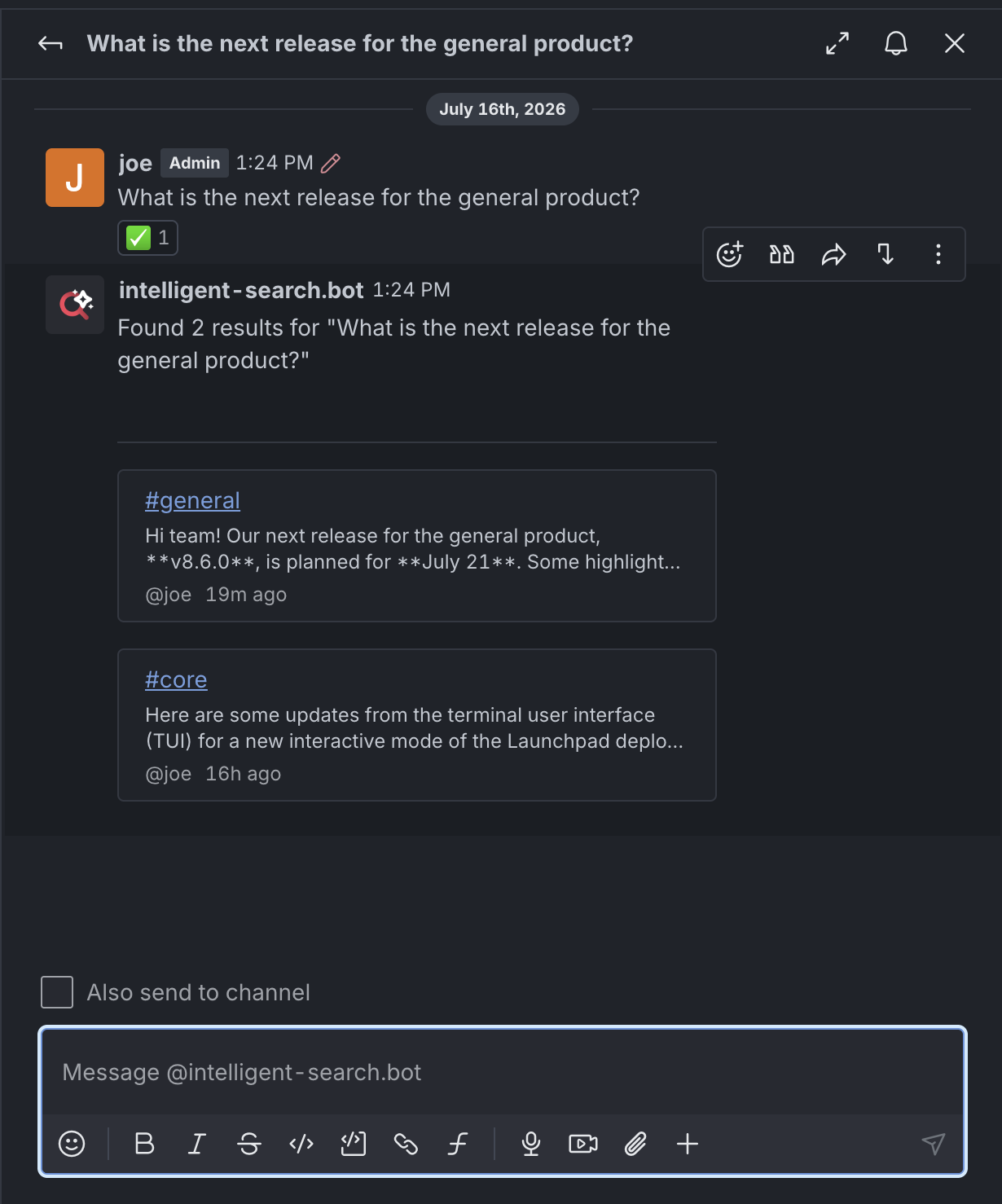
intelligent-search.bot) from the results to start a DM.Ask the bot your question. For example,
What's the latest update from engineers on project X?".The bot replies in a thread with results based on indexed room messages and your access level.
Very short or ambiguous queries can return less relevant results.
Because Intelligent Search uses semantic search, results may include older messages that are contextually relevant unless you specify a time range in your query.
Search management commands
Workspace administrators can also select which rooms are indexed and included in search results from the workspace UI.
To do this, go to your DM with the Intelligent Search app bot (intelligent-search.bot) and use the slash commands described below. To view the list of all commands, run /search help.
Enable or disable search for rooms
Use the following commands in the DM with the Intelligent Search bot to enable and disable search for specific rooms:
Slash command | Description |
|---|---|
| Enable search for a room. Note that encrypted rooms cannot be included in the search results. Enter the For example, |
| Disable search for a room. |
Bulk enable or disable search
In the DM, use the following commands to enable or disable search in bulk by room category:
Slash command | Description |
|---|---|
| Enable search in channels, teams, discussions, or DMs. Use one room type at a time. For example, Bulk jobs run in the background, and new rooms are automatically added to the indexing process. |
| Disable search in channels, teams, discussions, or DMs. Use one room type at a time. New rooms will also not be included in the indexing process. |
Search status and inventory
In the DM with the bot, use the following commands to view the status of the search and indexing processes:
Slash command | Description |
|---|---|
| List the rooms where intelligent search is enabled. |
| Display the indexing status for a room ( This returns details such as the number of tracked rooms, initial and cleanup jobs, and other background processes. |
| Shortcut to display only workspace-level stats. |
| List rooms without initial indexing jobs ( |
| Display the status of bulk index jobs. |
Search maintenance
In the DM, use the following commands for specific configuration according to your needs:
Slash command | Description |
|---|---|
| Attempt to auto-create the pipeline. Use this command when the pipeline ID is not configured in the app settings. The app automatically creates a new pipeline that will index rooms. |
| Manually reload a message to the index. You can enter the message ID ( Get the message URL by clicking the kebab menu against any message and selecting Copy link. To get the message ID, you can use one of the GET endpoints from the Rooms or Messaging API. |
| Delete a message from the search index using the message ID or the message URL. |
| Check if a message exists in the search index. |
Troubleshooting
I get the error that the "Pipeline is not ready".
Ensure that you have entered the correct pipeline API URL in the app settings. If you have not created one previously, you can use the /search setup command in the DM with the bot to create a new pipeline.
I’m getting zero search results.
Ensure that you have enabled rooms for indexing.
Verify that the value of the Default Search Lookback (Days) setting is greater than zero.
Check the status of indexing jobs.
Some relevant messages are missing from the results.
One cause for this may be that the messages were deleted or no longer available in the pipeline. The app hides missing messages and logs a cleanup attempt.
Bulk jobs are stuck.
Run the
/search status bulkcommand in the DM with the bot for details.Check the server logs for lock or paging issues.
This depends on the value of the Log Output Target setting in the Logging and access section of the app’s settings. If this is set to Rocket.Chat Logger, then the logs are displayed under the app’s Logs section. If the selected option is Console, then the logs are displayed on the server logs where Rocket.Chat was deployed.