
Launchpad is a command-line interface (CLI) tool that provides a quick, comprehensive solution to deploying Rocket.Chat with Kubernetes. It simplifies the deployment process by configuring the Kubernetes resources and supporting infrastructure required to run a Rocket.Chat workspace. Launchpad supports EKS and K3s.
Key benefits
Automated orchestration: Handles end-to-end workspace deployments on Kubernetes clusters without manual setup of ingress controllers or TLS cert managers.
Built-in observability: Comes pre-configured with Prometheus Operator and Grafana dashboards for immediate insight into workspace and infrastructure metrics.
Streamlined database lifecycle: Supports either a fully managed built-in MongoDB operator or seamless integration with an external MongoDB cluster (such as MongoDB Atlas).
Scaling: Scales the Rocket.Chat application services from the CLI as your usage changes.
Launchpad is intended for users who want a guided deployment experience without manually assembling every component of the Kubernetes stack. If you need more control over the individual components, see the Kubernetes, Docker, or Podman deployment guides.
This guide walks you through deploying Rocket.Chat with Launchpad, from preparing your environment to accessing and monitoring your workspace.
Before you begin, review the following limitations:
Launchpad currently does not support Omnichannel or federation workloads. For these use cases, use one of the other recommended deployment methods.
It is recommended that you first deploy in a test environment to verify that the workspace is deployed according to your needs before deploying to production.
Launchpad architecture components
Here is an overview of the internal components that Launchpad uses to deploy workspaces:
Component | Purpose |
|---|---|
Installs, upgrades, and uninstalls Helm charts through a HelmChart custom resource definition (CRD). | |
Deploys Prometheus Operator, Prometheus exporters, Grafana, and Rocket.Chat metric dashboards. | |
Provides HTTP routing and load balancing for services. | |
Issues and automatically renews Let’s Encrypt TLS certificates. | |
Deploys MongoDB Community Edition into the cluster for deployments that require built-in MongoDB. | |
Manages MongoDB access, credentials, and connection secrets. | |
Launchcontrol | A closed-source Rocket.Chat Kubernetes operator that ultimately deploys and reconciles workspace deployments. |
Longhorn (K3s only) | Provisions and manages persistent volumes across cluster nodes. |
SeaweedFS (optional, experimental) | A distributed object storage system. |
Launchpad workspace sizing guide
Launchpad sizes your workspace using a preset. Each preset defines the number of replicas, MongoDB resources and storage, and minimum cluster capacity.
Choose a preset that aligns with your team before deploying:
Preset | Suitable for | Concurrent active users | Estimated registered users |
|---|---|---|---|
| Small teams and baseline production | Up to 500 | 2,500–3,000 |
| Mid-size organizations | Up to 750–800 | 4,000–5,000 |
| Large organizations with multiple departments | Up to 1,500–1,600 | 7,500–10,000 |
These figures are sizing guidance rather than hard limits. Actual capacity depends on factors such as message volume, channel size, WebSocket connections, and usage patterns.
Each preset deploys the following number of replicas for Rocket.Chat microservice:
Service |
|
|
|
|---|---|---|---|
Rocket.Chat (core) | 2 | 4 | 8 |
DDP streamer | 1 | 2 | 4 |
Account service | 1 | 2 | 3 |
Authorization service | 1 | 2 | 3 |
Presence service | 1 | 2 | 3 |
You can change these counts after deployment, as described in Scale your workspace.
Prerequisites
This guide primarily uses AWS EKS to deploy Rocket.Chat with Launchpad using the
smallpreset.
Before installing Launchpad, make sure you have the following:
An AWS account with appropriate permissions and credentials.
AWS CLI installed and configured.
Follow the AWS CLI installation instructions for your operating system.
After installing the AWS CLI, configure your AWS credentials according to your organization requirements. For example, you can use the
aws configurecommand, environment variables, or a config file. See the AWS CLI Getting Started section for details.
eksctl installed.
kubectl installed.
A custom domain for the workspace with access to your DNS provider.
File storage sytem for storing workspace files. Amazon S3 is recommended.
If you are using K3s instead of EKS, you need:
A ready K3s cluster with Traefik disabled (--disable=traefik).
Longhorn dependencies installed to provide storage volumes managed by Launchpad.
Step 1: Choose a database strategy
You can either use the MongoDB deployment that ships with Launchpad or connect your own external database. This choice affects the size of your cluster.
Built-in MongoDB: Best for deployments where you do not want to manage a separate database.
External MongoDB: Deployments where you already run MongoDB. MongoDB Atlas is recommended.
Cluster sizing guide
The following table shows the minimum cluster requirements for each Launchpad preset. External MongoDB deployments require fewer cluster nodes because MongoDB runs outside the Kubernetes cluster.
Preset | MongoDB | Min. nodes | Min. vCPU | Min. RAM | EKS instance type | K3s node spec | MongoDB storage / Atlas tier |
|---|---|---|---|---|---|---|---|
| Built-in | 5 | 9 | 30 GiB |
| 2 vCPU, 8 GiB | 30 GB |
| External | 3 | 5 | 9 GiB |
| 2 vCPU, 8 GiB | M20–M30 |
| Built-in | 5 | 16 | 45 GiB |
| 4 vCPU, 16 GiB | 60 GB |
| External | 3 | 10 | 20 GiB |
| 4 vCPU, 8 GiB | M30–M40 |
| Built-in | 5 | 28 | 80 GiB |
| 8 vCPU, 32 GiB | 120 GB |
| External | 3 | 20 | 40 GiB |
| 8 vCPU, 16 GiB | M40–M50 |
For MongoDB Atlas, it’s recommended to host the cluster in the same AWS region as your deployment, or as close to it as possible, and use peering to connect it to your AWS environment.
You’ll need the MongoDB Atlas connection string during deployment. It should follow this format:
mongodb+srv://<user>:<pass>@cluster1.q9p55.mongodb.net/db
Step 2: Install Launchpad CLI
Download the Launchpad archive matching your operating system and CPU architecture:
Linux (amd64) - https://go.rocket.chat/i/launchpad-linux-amd64-latest
Linux (arm) - https://go.rocket.chat/i/launchpad-linux-arm-latest
Linux (arm64) - https://go.rocket.chat/i/launchpad-linux-arm64-latest
macOS (amd64) - https://go.rocket.chat/i/launchpad-darwin-amd64-latest
macOS (arm64) - https://go.rocket.chat/i/launchpad-darwin-arm64-latest
Windows (amd64) - https://go.rocket.chat/i/launchpad-windows-amd64-latest
Checksums (latest) - https://go.rocket.chat/i/launchpad_checksums-latest
Extract the downloaded archive.
The extracted directory contains the Launchpad binary and an example deployment configuration:
launchpad
examples/
└── deploy.yaml
From the directory containing the Launchpad binary, run:
./launchpad versionYou should see output similar to:
launchpad version 0.4.0, blueprints v1.2.0-alpha1, commit 4cf34edcaffd030ab00da08834eca9ea1abc3036 (2026-01-29T20:19:20Z), go version go1.24.4You can also run
./launchpadto display the available commands.
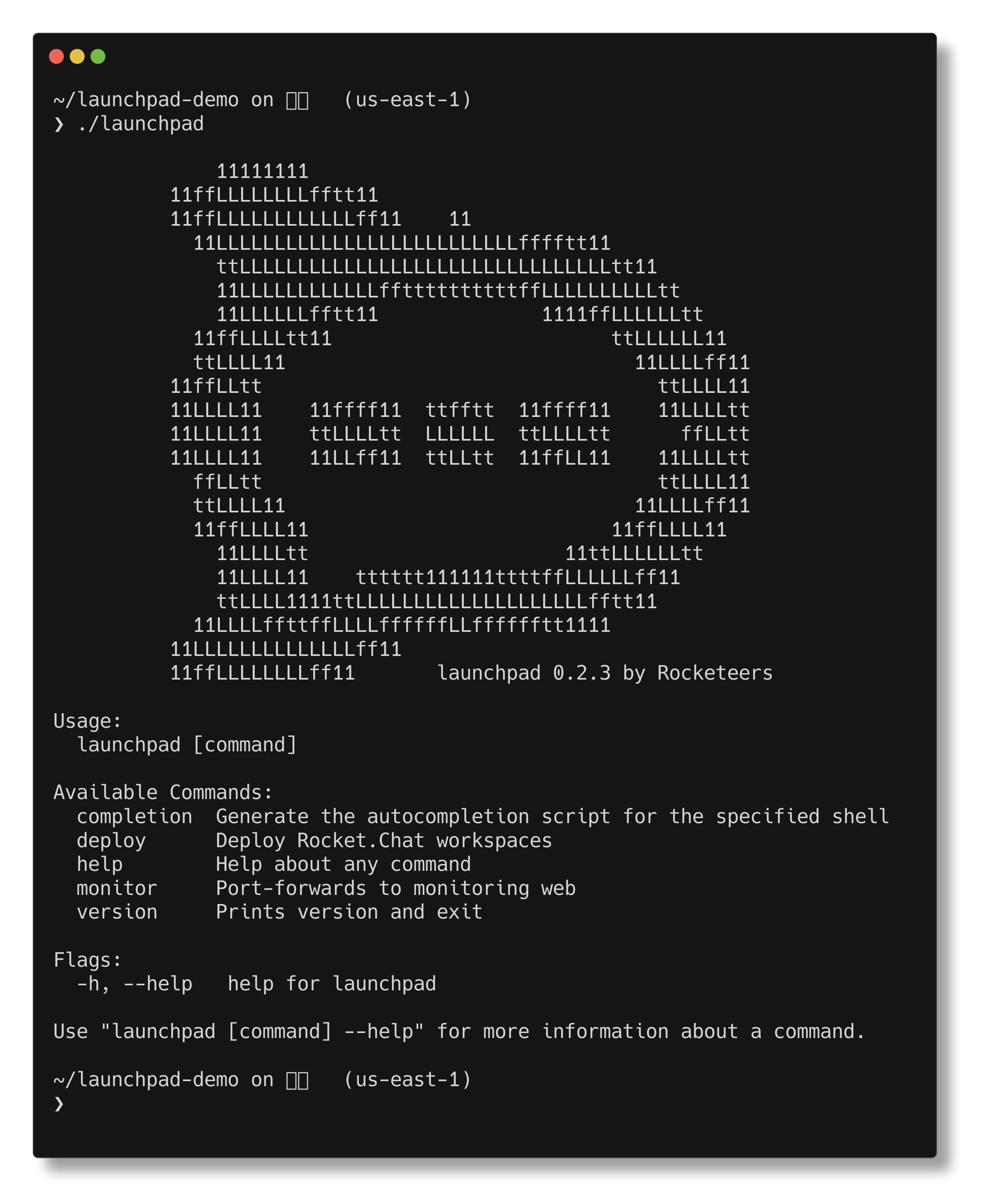
If the command is not found, make sure you are running it from the directory containing the launchpad binary.
Step 3: Create the Kubernetes cluster
Before you continue, confirm that you have configured your AWS credentials on the AWS CLI. If you haven’t, see the AWS CLI Getting Started section for details.
In the directory that contains the Launchpad binary, create a file named
eks-basic.yaml.Add the following configuration to the file based on your database strategy:
# eks-basic.yaml
# More examples at https://github.com/eksctl-io/eksctl/tree/main/examples
apiVersion: eksctl.io/v1alpha5
kind: ClusterConfig
metadata:
  name: dev-eks-launchpad # This is the cluster name. You can change the name if needed.
  region: us-east-1 # Change the client region if it is other than us-east-1.
  version: "1.33" # Kubernetes version. Change the value if required.
addons:
  - name: aws-ebs-csi-driver # required for monitoring, MongoDB
    version: 1.47.0
vpc:
  cidr: 10.0.0.0/16
nodeGroups:
  - name: dev-eks-node-group
    instanceType: t3.large  # To deploy with built-in MongoDB, at least t3.large is required.
    desiredCapacity: 5      # To deploy built-in MongoDB, at least 5 is required.
    privateNetworking: true
    iam:
      withAddonPolicies:
        ebs: true
# eks-basic.yaml
# More examples at https://github.com/eksctl-io/eksctl/tree/main/examples
apiVersion: eksctl.io/v1alpha5
kind: ClusterConfig
metadata:
name: dev-eks-launchpad # This is the cluster name. You can change the name if you need to.
region: us-east-1 # Change the client region if it is other than us-east-1.
version: "1.33" # Kubernetes version. Change the value if required.
addons:
- name: aws-ebs-csi-driver # required for monitoring, MongoDB
version: 1.47.0
vpc:
cidr: 10.0.0.0/16
nodeGroups:
- name: dev-eks-node-group
instanceType: t3.large # At least t3.large is required.
desiredCapacity: 3 # At least 3 is required.
privateNetworking: true
iam:
withAddonPolicies:
ebs: true # required for monitoring, MongoDBThe cluster configuration above is for the
smallpreset.
Save the file and create the cluster:
eksctl create cluster -f eks-basic.yaml --kubeconfig=basic.configIf your AWS account setup requires a named profile, use this command instead:
eksctl --profile <aws-account-profile-name> create cluster -f eks-basic.yaml --kubeconfig=basic.configCluster creation takes approximately 15–20 minutes. The command also creates a
basic.configkubeconfig file containing the connection information for the new cluster.After the cluster is created, verify that the nodes are available:
kubectl get nodesYou should see five nodes for a built-in MongoDB deployment, or three for an external database.
.png)
Step 4: Configure your deployment
Launchpad provides two ways to configure your deployment:
Interactive terminal UI: Use Launchpad's guided terminal interface to create your deployment configuration. The interactive wizard prompts you for configuration details, validates your inputs, and can either deploy immediately or export a complete configuration file for future use. Use this if you are deploying for the first time or want to see every available option.
Manual configuration: Edit the
deploy.yamlfile in the/examplesfolder and deploy it. Use this for repeatable setups, or when you already know the values you need.
Both methods produce the configuration file, so you can start in the wizard, export the file, and edit it later.
The interactive configuration provides a guided terminal interface (TUI) that walks you through the deployment settings. Based on your selections, Launchpad generates the YAML configuration required to deploy your workspace.
Launch the wizard
From the directory containing the binary, start the interactive setup:
./launchpad deploy -iLaunchpad opens the configuration wizard.
Use the following controls to navigate the setup wizard:
Tab or Up/Down Arrow: Navigate between options.
Space or Left/Right Arrow: Select or toggle an option.
Enter: Continue to the next step.
Esc: Go back to the previous step.
Press Enter at the welcome prompt to begin.
Select Configuration:
Select Create New Configuration Session when you are setting up a new Rocket.Chat workspace.
If you have older Launchpad sessions, they are displayed here. Select a previous configuration to continue or reuse its settings.
Connect to Rocket.Chat Cloud ? : If your workspace is already registered with your Rocket.Chat Cloud account, you can connect your account to Launchpad. Launchpad automatically retrieves your subscriptions and registration tokens.
Enter y to connect to your Rocket.Chat Cloud account.
Enter n to skip this step and configure your workspace manually.
1. Kubernetes Cluster Connection
Configure how Launchpad communicates with your target cluster.
Kubeconfig path: Enter the path to the kubeconfig file for your cluster. If you created the EKS cluster using the instructions in this guide, use
basic.config.The kubeconfig file contains the connection and authentication information Launchpad uses to communicate with your Kubernetes cluster.
Kubernetes Provider: Select the Kubernetes distribution you are using:
Select EKS if you created an Amazon EKS cluster.
Select K3s this if you are deploying to a K3s cluster.
Press Enter to continue to the next step.
2. Workspace Core Specifications
Enter the basic information for your Rocket.Chat workspace.
Workspace name: Enter a name to identify your workspace. This name is used in the generated deployment configuration.
Workspace version: Enter the Rocket.Chat release (e.g., 8.5.0) you want to deploy. See the release notes for available versions.
Workspace domain: Enter the public domain where users will access Rocket.Chat. This must be a domain that you control because you will need to configure a DNS CNAME record for it later in the deployment.
Workspace size preset: Select the available workspace size. See the sizing guide above for more details.
Press Enter to continue to the next step.
3. TLS Certificate Configurations
Launchpad can automatically provision and renew HTTPS certificates using Let's Encrypt and cert-manager. If your workspace is publicly accessible, we recommend enabling Let's Encrypt certificates so that Launchpad can manage the certificate lifecycle for you. For air-gapped workspaces, Launchpad automatically generates a self-signed certificate when Let's Encrypt certificates are not enabled.
Select Enable Let's Encrypt certificates. You are then prompted to enter an email address.
Enter an email address for Notification Email. This address receives notifications about certificate renewals and expiration.
Press Enter to continue to the next step.
4. Database Infrastructure
Choose how Rocket.Chat should connect to MongoDB.
The database choice here should match the EKS cluster configuration you created earlier.
Option 1: Deploy built-in MongoDB Operator cluster
Select this option if you want Launchpad to deploy MongoDB inside your Kubernetes cluster. With this, Launchpad manages the MongoDB deployment for you. You don’t need to provide an external MongoDB connection string. You’ll be prompted for the following:
Create Database Admin Password: Set a strong password to authenticate against the managed replica set and store it securely.
Allow GridFS Uploads: Select this option to store file uploads inside the database. We recommend leaving this disabled and configuring an S3-compatible object storage after deployment.
Option 2: Use an external MongoDB
Select this option if you already have a MongoDB deployment, such as MongoDB Atlas. You’ll then be prompted to enter the MongoDB connection string, for example:
mongodb+srv://<user>:<password>@cluster.example.mongodb.net/rocketchatFor production deployments, we recommend hosting MongoDB in the same AWS region as the Kubernetes cluster, or as close to it as practical.
5. File Uploads Storage Backend
SeaweedFS is a built-in, lightweight distributed object store for file uploads such as attachments, avatars, and media. It is experimental and intended for air-gapped environments.
Select Deploy and configure built-in SeaweedFS storage (experimental) only if you specifically need to use the built-in storage option.
Press Enter to continue to the next step.
6. Airgap Isolated Deployments 
Select Enable Airgap mode (fully isolated network) if your Kubernetes environment is isolated from the internet and cannot directly pull the required container images and charts.
An air-gapped deployment requires additional preparation, including the appropriate Launchpad blueprint images, local assets, registry configuration, and license key.
Launchpad can package the required images and charts into an offline package using:
./launchpad packageIf you are deploying to a standard internet-connected environment, leave Airgap mode disabled and press Enter to continue to the next step.
7. Private Image Registry Credentials
For air-gapped deployments, specify an OCI-compatible private registry that Kubernetes can reach to pull the images required for the deployment. Launchpad configures the workloads to use the specified registry for their image references.
Use a registry address that is reachable from the Kubernetes nodes rather than localhost. Make sure the registry contains all required images before starting the deployment. You can serve and preload a local registry using ./launchpad tools registry.
Enter the following registry details:
Registry Host: Enter the registry hostname or IP address, optionally followed by the port (host[:port]).
Registry Username (optional): Enter the registry username.
Registry Password (optional): Enter the registry password.
If you are deploying to a standard internet-connected environment, press Enter to skip to the next step.
8. Review Workspace Configuration
After completing the configuration steps, Launchpad displays a summary of your deployment settings. Review the configuration, then choose one of the following options:
Export the configuration: Press
eto export the generated YAML configuration to a local file in the Launchpad directory. The file is saved using your workspace name in the formatname-deploy.yaml. Use this option to review or modify the YAML before deployment. You can deploy the exported configuration later.Save the session: Press
sto save the current configuration session and return to it later.Go back: Press
Escto return to a previous step and modify the configuration.
Export the configuration and exit the terminal.
If you prefer to manage the deployment configuration manually, use the examples/example.yaml file. You can customize the same file for either a built-in MongoDB deployment or an external MongoDB deployment.
Open
examples/deploy.yaml:nano ./examples/deploy.yamlConfigure the workspace: Update the following parameters:
name: The name of your workspace.version: The Rocket.Chat release you want to deploy, such as 8.5.0. See the release notes for available versions.address: The URL for your workspace.size: The resource allocation for the deployment. The small size is currently supported.REG_TOKEN: If you received a registration token from the Support or Sales team, enter it here. Otherwise, leave the default value.
Configure TLS: Update email with the email address to use for Let's Encrypt notifications:
acme:
  letsencrypt:
    enabled: true
    email: "example@email.com"
The
acmesection configures TLS certificates. Launchpad uses Let’s Encrypt by default for publicly accessible workspaces. For air-gapped workspaces, Launchpad automatically generates a self-signed certificate.Configure MongoDB: Choose one of the following options:
Built-in MongoDB: To deploy MongoDB with Launchpad, enable the
mongodbsection:mongodb: enabled: true allowGridFSUploads: false createAdminPassword: bananaallowGridFSUploadsconfigures the workspace to store file uploads inside the database. We recommend leaving this disabled and configuring an S3-compatible object storage after deployment.createAdminPasswordis the password used to authenticate with the managed MongoDB replica set. It is optional and defaults toadmin.
External MongoDB: To use an existing MongoDB deployment, leave the
mongodbsection disabled or commented out and provide your MongoDB connection string inMONGO_URL:environment: REG_TOKEN: my-registration-token MONGO_URL: <mongo-connection-string> #The MongoDB Atlas connection stringDo not configure
MONGO_URLwhen using the built-in MongoDB.
Configure file storage (optional): The optional seaweedfs section enables the experimental built-in file storage for Rocket.Chat uploads:
seaweedfs:
  enabled: true
SeaweedFS is intended for air-gapped environments. When enabled, Launchpad deploys and configures it as the file upload backend. It cannot be used with GridFS.
Configure an air-gapped deployment (optional): If you’re deploying an air-gapped workspace, enable the
airgapsection:airgap: enabled: trueAn air-gapped deployment requires additional preparation, including the appropriate Launchpad blueprint images, local assets, registry configuration, and license key.
Launchpad can package the required images and charts into an offline package using:
./launchpad packageConfigure a private registry (optional): If your Kubernetes cluster uses a private OCI-compatible registry, configure its details:
registry:
  host: "192.168.100.1:7070"
  user: "myuser"
  password: "mypassword"
The registry must be reachable from the Kubernetes nodes and contain all required images. For air-gapped deployments, use a registry address reachable from the nodes rather than localhost. You can serve and preload a local registry using
./launchpad tools registry.host: Enter the registry hostname or IP address, optionally followed by a port (host[:port]).user(optional): Enter the registry username.password(optional): Enter the registry password.
Save the file after making your changes, then exit the examples directory and return to the directory containing the Launchpad application.
Step 5: Deploy the workspace
From the Launchpad binary directory, run the following to deploy the workspace to your Kubernetes cluster:
./launchpad deploy -f <config-file> -k basic.config -p eksIf you are using K3s, deploy with the
-p k3sflag as follows:./launchpad deploy -f <config-file> -k basic.config -p k3s
Replace <config-file> with the path to your configuration YAML file.
Configure your DNS record
On the first deployment, Launchpad performs a series of configuration checks. If the configuration is valid, the deployment pauses and Launchpad displays a CNAME target address. You must add this CNAME record to your DNS provider before continuing with the deployment.
The following screenshot shows an example of the CNAME target displayed by Launchpad:
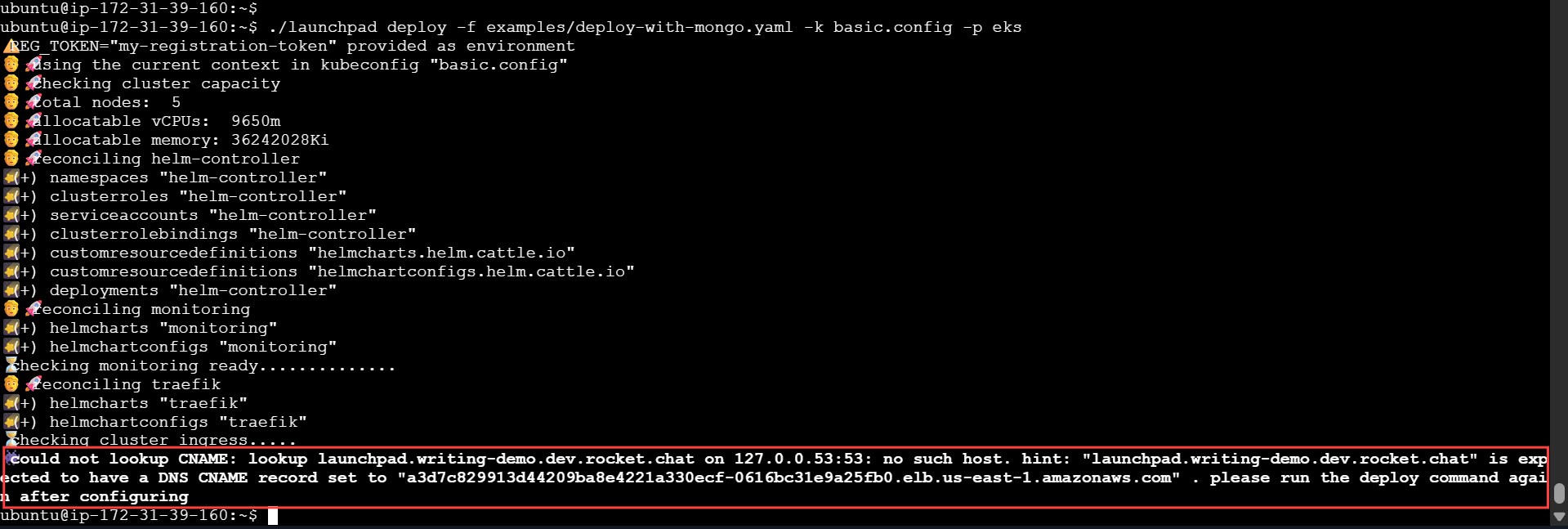
Copy the CNAME target displayed by Launchpad.
Add the CNAME record to your DNS provider. Map your workspace hostname to the CNAME target provided by Launchpad.
Wait for the DNS record to propagate. This usually takes 1–2 minutes.
Run the same deployment command again.
After you rerun the deployment command, Launchpad detects the DNS record and continues the deployment. It completes the Let's Encrypt ACME HTTP challenge, provisions the TLS certificate, and initializes the workspace.
The following screenshot shows an example of a successful deployment:
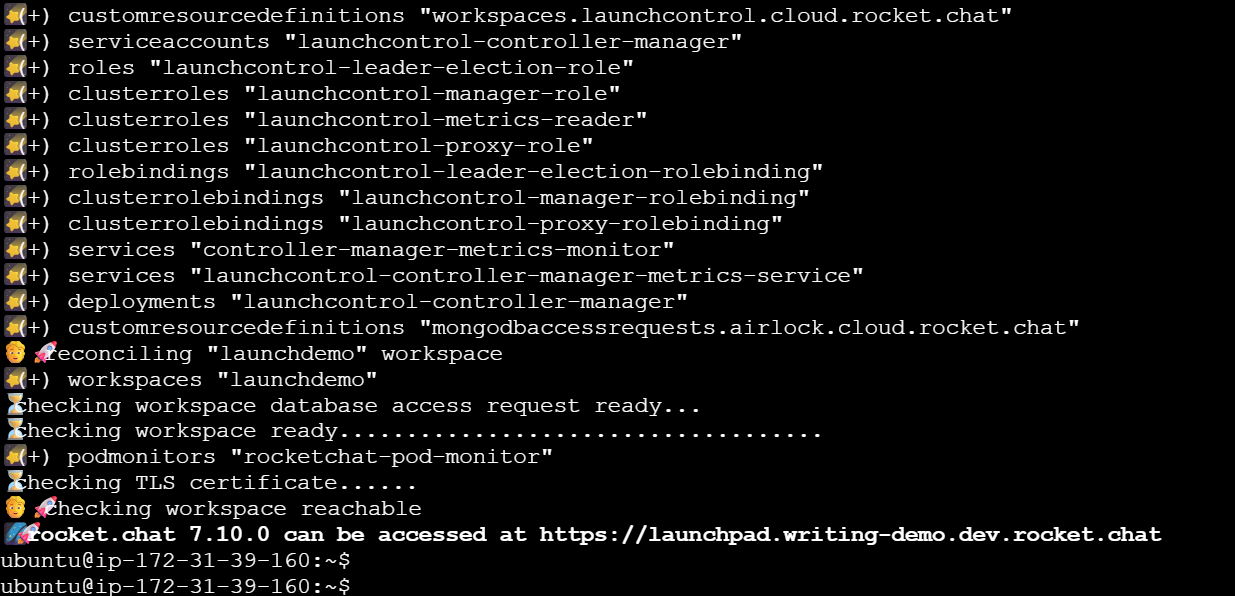
The workspace is now available at your configured URL within a few minutes.
Step 6: Access your workspace
Great! You’ve successfully created your Rocket.Chat workspace with Launchpad. Access it using the workspace URL that you have defined in the configuration.
After the workspace loads, follow the on-screen prompts to create your first admin user and complete the initial workspace setup. Your workspace and email will be registered with the Rocket.Chat Cloud portal during this process.
Next, explore the following resources to continue using your new workspace:
User Guides: Learn the basics of your Rocket.Chat account, the types of rooms, and how to communicate with your workspace users.
Workspace Administration: Administrators and owners can set and manage various configurations. To share files on the workspace, make sure to configure the workspace file upload settings.
Marketplace: Explore the available apps to enhance your workspace.
Monitor your workspace
Launchpad provides a Grafana dashboard for monitoring workspace metrics and logs. The dashboard is available through a local port-forwarding connection.
From the directory containing the Launchpad binary, run:
./launchpad connect grafana -k basic.configOpen the following URL in your browser to access Grafana: http://localhost:8080/d/rocketchat-metrics/rocket-chat-metrics.
Sign in with the default credentials:
Username:
adminPassword:
admin
Grafana prompts you to change the password after your first login.
After signing in, the Rocket.Chat Metrics dashboard is displayed. The following screenshot shows an example:
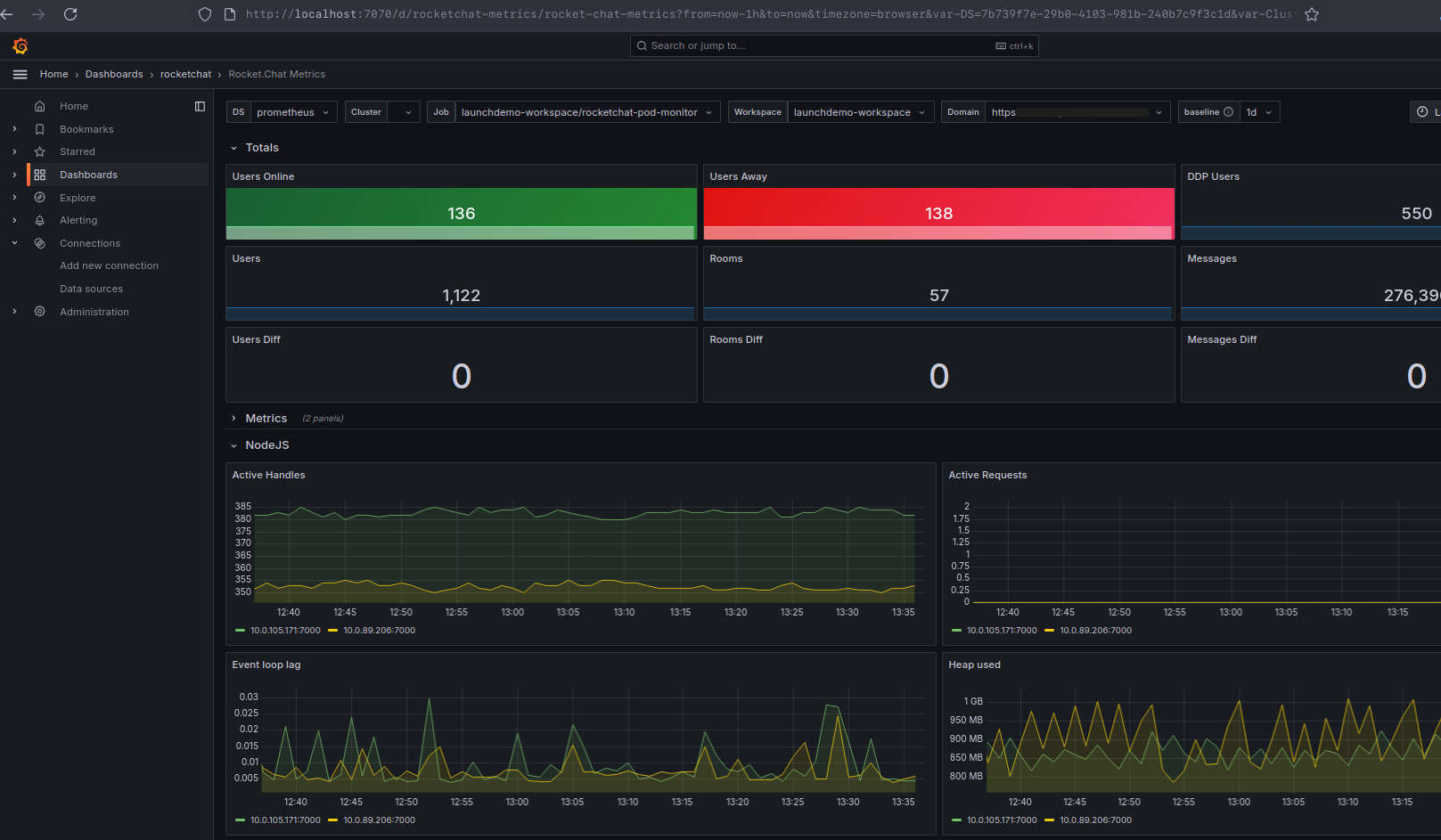
To view the available dashboards, select Dashboards from the top menu.
.png)
Select Rocket.Chat Logs to view your workspace logs.
When you are finished, return to the terminal where the Grafana connection is running and press Ctrl + C to stop port forwarding. The Grafana dashboard is no longer accessible through the local URL.
Update your workspace
When updating your workspace using Launchpad, it updates the workspace custom resource in Kubernetes and monitors the rollout until all components are healthy.
To update a workspace to a new Rocket.Chat release, run:
./launchpad upgrade rocketchat -v <version>Replace <version> with the Rocket.Chat version you want to update to, for example 8.6.0.
If your cluster has exactly one workspace, Launchpad finds it automatically. If you have more than one, specify the workspace name as an argument or with the -w flag:
./launchpad upgrade rocketchat <workspace-name> -v <version>Here are some additional options you can use when updating your workspace version:
Option | Description |
|---|---|
| Path to the kubeconfig file. Defaults to |
| Maximum time to wait for the workspace rollout and readiness. The default time is 10 minutes. |
| Run pre-flight checks and validation without modifying Kubernetes resources. |
| Verify that the required images exist in the OCI registry before upgrading. |
| Bypass MongoDB version compatibility checks. |
| Path to an air-gap package bundle ( |
| Target OCI registry host for an air-gap package bundle. |
| Basic authentication username for the registry. |
| Basic authentication password for the registry. |
| Path to the public key used to verify the package signature. |
Update air-gapped workspace version
In air-gapped environments, Launchpad detects your private registry and verifies that all required container images are present before it applies any changes. If you need to push a new package bundle before upgrading, pass the bundle path and target registry following this command:
./launchpad upgrade rocketchat <workspace-name> \
  -v <version> \
  --package <package> \
  --registry <registry>
Scale your workspace
Use launchpad scale rocketchat to change the number of replicas for the Rocket.Chat core, DDP streamer, account, authorization, and presence services.
Built-in MongoDB and SeaweedFS are not scaled by this command. Their resources and storage remain based on the preset used during initial deployment.
Before applying a change, Launchpad checks that the new pods fit on your nodes. If they don't, the command stops and your workspace is not changed.
If you're scaling up to a larger preset, resize your cluster to the values in cluster sizing guide. On EKS, add nodes to your node group:
eksctl scale nodegroup --cluster=dev-eks-launchpad --name=dev-eks-node-group --nodes=5 --nodes-max=5If the preset needs a larger instance type, create a new node group with that type instead.
Preview the change:
./launchpad scale rocketchat <workspace-name> --size medium --dry-run -k basic.configLaunchpad shows the current and target replicas for each service.
Apply the change:
./launchpad scale rocketchat <workspace-name> --size medium -k basic.configLaunchpad updates the workspace and waits until the new pods are running.
To scale down, run the same command with a smaller preset or lower counts. Users connected to removed pods reconnect automatically.
If the rollout fails, Launchpad prints a command that restores your previous replica counts. Run it, then check your cluster capacity.
Access Rocket.Chat Cloud
With Launchpad version 0.3.0, you can log in to the Rocket.Chat Cloud portal and take actions directly from the command line. The following commands are available:
./launchpad cloud login: Run this command to log into the Rocket.Chat Cloud portal (cloud.rocket.chat) from the CLI. You are prompted to authorize the login on a browser. This allows the Launchpad tool to perform actions on behalf of your Rocket.Chat Cloud account, which allows you to view and connect to new workspaces../launchpad cloud logout: Run this command to log out of the Cloud portal.
Troubleshooting
I’m getting the error “Could not look up <workspace-url>“ when I run the deploy command again after setting up the CNAME record.
If you still see the hint when running the deploy command again after setting up the CNAME, make sure that the correct URL is specified in the deployment file and you’ve set up the correct CNAME value. Wait for a few more minutes and try running the command again, since it may take some time for the address to propagate.
The launchpad command doesn’t work.
Verify that you have unzipped the tar file you downloaded and that you are in the folder where the launchpad binary file is present.
After running the deploy command, I get the error that the workspace is not ready.
You may be seeing a hint like this:
.png)
The workspace may take a while to be ready. Try accessing the workspace URL. If you’re unable to access it, wait for a few minutes and try again.
I cannot send file attachments on the workspace.
By default, the file storage settings are set to use Amazon S3. We recommend using Amazon S3 storage services to store your workspace files. Refer to the File Upload Settings guide to configure the workspace’s file storage settings.
I get an “Unhandled error“ when running the kubectl get nodes command.
kubectl get nodes command.The kubectl tool may not be using the cluster configuration that was created.
In Linux or macOS, run the following command:
export KUBECONFIG=basic.configOn Windows OS, run the following command:
$env:KUBECONFIG="basic.config"Ensure that you are pointing KUBECONFIG to the location where the basic.config file is present. Then run kubectl get nodes command again. The nodes should now be displayed.
You can run the kubectl config -h help command to view more information.
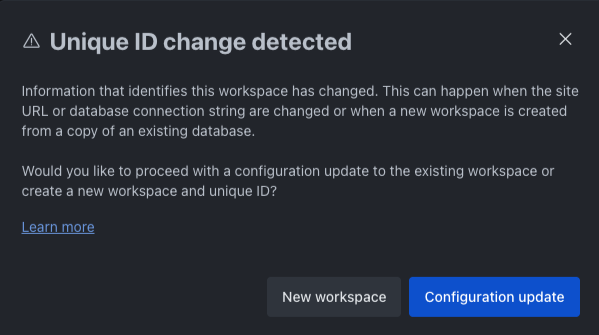
Why am I seeing a message about a “Unique ID change detected”?
This message appears when Rocket.Chat detects changes that may indicate a new deployment or a significant workspace configuration update. To prevent issues caused by cloned or duplicated deployments, Rocket.Chat uses a system called a fingerprint to verify the identity of each workspace.
What is the Unique ID?
The Unique ID is a hash that uniquely identifies a Rocket.Chat server. It is generated automatically the first time the server starts. This ID helps ensure that cloud features (e.g., license validation, push notifications) are only associated with a single workspace.
What should you do?
If you are deploying a new workspace, confirm it as a New workspace. In this case, Rocket.Chat will:
Generate a new Unique ID
Reset all cloud connections
Clear the cloud workspace link
Reset the cloud license
If this is not a new workspace and you have made configuration changes (e.g., you updated the site URL or changed database settings), click Configuration update.