Accessing workspace FAQ
How do I access my Rocket.Chat workspace?
Open your browser and go to your workspace URL. This is typically provided by your workspace administrator and looks like:
https://your-workspace-address.rocket.chatLog in using your username and password.
For detailed instructions, see the Access Your Workspace guide.
Can I access my Rocket.Chat workspace on a mobile device?
Yes. Rocket.Chat is available on both iOS and Android via the App Store and Google Play.
After installing the app, enter your workspace URL and log in with your credentials.
For installation steps, see the Install Desktop and Mobile App guide.
I'm having trouble logging in to my Rocket.Chat workspace. What should I do?
If you're unable to log in:
Check that your workspace URL, username, and password are entered correctly.
If you forgot your password, click “Forgot your password?” on the login screen to reset it.
If you still can’t log in, contact your workspace administrator for help.
Can I switch between multiple workspaces in Rocket.Chat?
Yes. You can switch between multiple workspaces in both the desktop and mobile apps.
Desktop: Click the + (plus) icon below the workspace list in the sidebar to add a new workspace.
Mobile: Tap the workspace name, select Add workspace, and enter the new workspace URL and your login credentials.
Can I access Rocket.Chat offline?
Rocket.Chat requires an internet connection for real-time messaging. However, previously loaded messages may still be available offline due to local caching, depending on your browser or app settings.
Two-factor authentication FAQ
How do I make email two-factor authentication mandatory for a role?
To require email-based two-factor authentication (2FA) for a specific role:
Ensure SMTP is configured and working in your workspace.
Go to Manage → Workspace → Settings → Accounts and:
Enable Two Factor Authentication
Enable Two Factor Authentication via Email
In the same section, open Registration and enable:
Require email verification to login
Go to Manage > Workspace > Permissions:
Select the role you want to update
Enable Users must use Two Factor Authentication
Role-based enforcement is only available on the premium plans.
What happens next?
Users with this role will receive a verification code by email when logging in and must enter it to access the workspace.
White-labeling FAQ
Rocket.Chat's white-labeling feature lets you customize your workspace to align with your organization’s branding.
How do I change my workspace logo in the server list of the desktop app?
Go to Manage > Workspace > Settings > Assets
Upload your logo (SVG format) in the favicon (svg) field
How do I change my workspace logo in the server list of the mobile app?
Go to Manage > Workspace > Settings > Assets
Upload a 512×512 PNG version of your logo in the android-chrome 512×512 (png) field
Registration FAQ
How do I lock registration on Rocket.Chat?
To disable new user registrations:
Log in with an account that has administrator privileges
Go to Manage → Workspace → Settings → Accounts
Scroll to the Registration section
Set Registration Form to
Disabled, then save your changes
Once disabled, new users will not be able to register. Existing users can continue to log in as usual.
Can I restrict registration instead of disabling it?
Yes. You can limit registration to users with a secret registration link.
Steps:
Go to Manage > Workspace > Settings > Accounts > Registration
Set Registration Form to Secret
Enter a value in the Registration Form Secret URL field (for example,
my-secret-code) and save
Your registration page will then be available only at
https://yourdomain.com/register/my-secret-codeShare this link only with users who are allowed to register.
What is user email verification?
Email verification ensures that only users with a verified email address can log in to your workspace.
When enabled, users must confirm their email address before they can access the workspace.
How do I require email verification for login?
Go to Manage → Workspace → Settings > Accounts
In the Registration section, enable Require email verification to login
Once enabled, users must verify their email before logging in.
Can admins verify a user’s email manually?
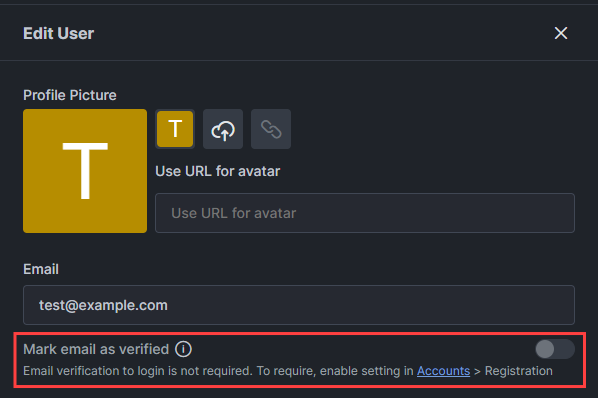
Yes. Workspace admins can manually mark a user’s email as verified:
Go to Manage > Workspace > Users
Open the user’s profile
Enable Mark email as verified
Why aren’t users receiving verification emails?
Email verification requires SMTP to be properly configured.
If SMTP is not set up correctly:
Verification emails will not be sent
Users may be unable to log in
Check your SMTP settings to ensure email delivery is working.
Message privacy FAQ
Can my workspace administrator view messages in channels they are not a member of?
It depends on the type of conversation:
Public channels: Visible to all users, including administrators
Private channels and direct messages: Only visible to members
When can admins access private messages?
Admins can access private messages only if they have a Message Auditor role enabled.
Users with this role can:
Access messages (public and private) through the audit panel
Have their activity recorded in Audit Logs
To prevent message access by auditors, use end-to-end encryption (E2EE).
File upload FAQ
Why am I getting a “Request Entity Too Large” error when uploading files?
This error usually means the file you’re uploading exceeds the configured upload size limit.
How to fix it
Option 1: Check your workspace upload limit
Go to Manage → Workspace → Settings → File Upload
Increase the Maximum File Upload Size if needed
Option 2: Check your reverse proxy limits
If you’re using a reverse proxy, it may enforce its own file size limits.
NGINX: Update the
client_max_body_sizesettingApache: Increase the
LimitRequestBodyvalue
Refer to the Nginx documentation for details.
Option 3: Check your Apache reverse proxy settings
If you're using Apache as the reverse proxy, the file upload size may be restricted by Apache’s default settings. To support files ≥1GB, we recommend updating your Apache configuration with the following directive: LimitRequestBody 2147483647. This increases the limit to ~2GB. Add this inside the relevant <Directory> or <VirtualHost> block in your configuration file, and then restart Apache to apply the change.
Option 4: Check your container storage
When using any type of containerized storage, consider increasing memory allocation (e.g., 6–8GB) during testing to see if this helps stabilise large uploads.
Option 5: Web browser upload imitations
If you are using a web browser to upload the files, browsers can be less reliable when uploading very large files due to network timeouts and memory constraints. If possible, try uploading the same file using the Rocket.Chat desktop app to see if it behaves differently.
Option 6: File storage type
Rocket.Chat supports different file storage types for your workspace. For reliability, we recommend using Amazon S3, Minio, and Google Cloud Storage.
Uploading very large files can also trigger issues with MongoDB’s sort operations. If that happens, follow this guide to troubleshoot.
I don’t want to store the files on the Rocket.Chat server. What should I do?
By default, Rocket.Chat stores uploaded files on the server so they can be accessed and downloaded by other users.
Currently, there is no setting to send files without storing them.
Alternatives
If you want to avoid long-term file storage on your server, you can:
Use external file-sharing services: Share links from services like Google Drive or Dropbox instead of uploading files directly.
Configure file retention rules: Automatically delete uploaded files after a set period (for example, 7 or 30 days) so they are not stored permanently.
Notifications FAQ
How do I manage workspace notifications?
You can customize notifications at different levels depending on your needs:
Default workspace settings: Workspace admins can adjust Accounts settings to define default notification behavior, including email, room, message alerts, and sound volume. Users can later manage their own preferences in their account settings.
Global notification behavior: Users can adjust how notifications work across the workspace in the Notifications setting under General settings.
Per-room notifications: Users can customize notifications for individual rooms, such as muting alerts or changing mentions.
Mobile push notifications: Users can configure mobile push notifications to stay connected when using the Rocket.Chat mobile apps.